
Getting Started
|
2.1
Your
Implementation of Excelicare |
23.2 Logging
back into Excelicare |
2 Getting Started
2.1
Your Implementation of Excelicare
The
Excelicare product allows users to 'explore' clinical information and provides
a composite view of the patient's clinical summary. Some of the display
features contained within Excelicare may have been configured at implementation
to match your local requirements.
This
manual contains screen snapshots of the standard implementation so there may be
some subtle differences between what is shown in the manual and how the screens
are presented to you.
Please Note: that some of the icons and buttons
described in that section may not be configured as enabled for your
implementation.
2.2
Confidentiality
Security
of data and patient confidentiality are of paramount importance when developing
a patient database. The system is password protected and users are required to
provide a login name and password. There may also be the requirement depending
on setup of verifying a Security Image in order to access the system.
2.3
Logging On
·
Select the Excelicare web link on
your desktop or enter the URL provided to you by your System Administrator.
·
Enter the login name followed by
your password.
·
Select Login.
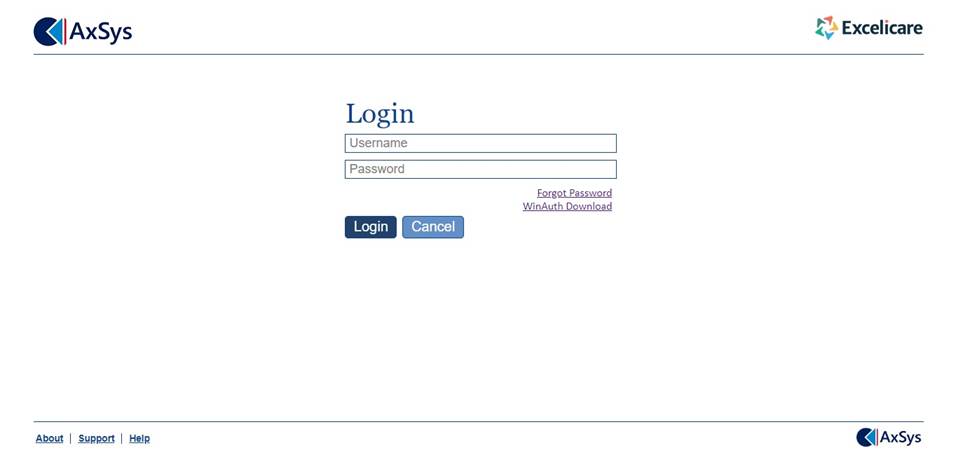
Located
on the bottom left hand corner of the screen, the following hyperlinks are
available:
About -
shortcut to the Excelicare web site.
Support -
shortcut to the Excelicare Support web site.
Help -
shortcut to the Excelicare help site.
Note: 2 Factor Authentication is enabled for
out of office public network / disabled for secured office network, through
system level configurations.
Pre-requisites:
· Mobile Authenticators - User should install Google authenticator and then add the 16-character length alphanumeric string (QR Code).
· Desktop Authenticators - If the user does not use mobile devices then the desktop application, WinAuth, must be installed.
- Enter the Username name followed by your
Password.
- Select Login.
Depending on your system settings you may be prompted to change your password the first time you log on to Excelicare.
Depending
on the initial Excelicare setup there may be further security question asked
from the list of security questions setup, after the login screen as part of a
second level authentication process, such as:
·
Favorite Colour
·
Favorite Drink
·
Mother’s Maiden Name
·
Make of First Car
·
First Pet’s Name

If the
Username name, password or answer to the security question you enter is
invalid, you will be informed of the error and prompted to re-enter. If you
have three successive failed attempts at logging in, you will be issued with a
user authentication failure message and you will be required to contact your
system administrator in order to unlock your account and reset your password.
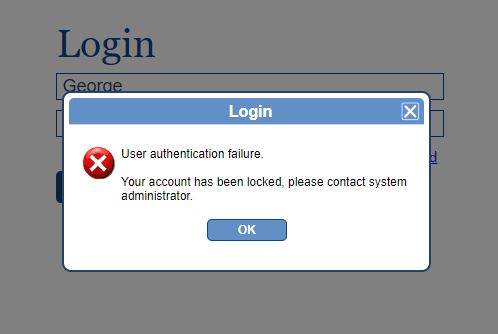
Note: All
successful and failed login attempts are recorded and can be viewed by the
System Administrator.
Tip:
Please remember that the password is case sensitive. If you have forgotten your
login name or password, you should consult your System Administrator.
If
either the login name or password you enter is invalid, you will be informed of
the error and prompted to re-enter. If you have three successive failed
attempts at logging in, you will be issued with a warning and the login screen
will be closed.
2.4 Logging on for the
first time
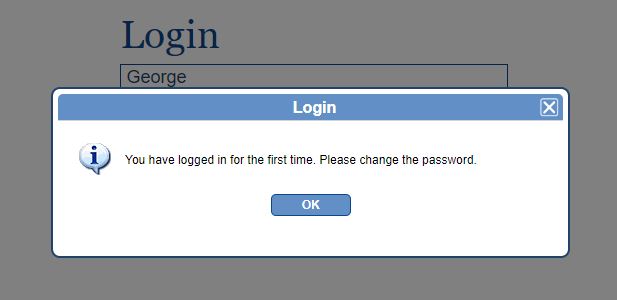
If
you are logging on for the first time (depending on your system settings) you
will be prompted to change your password and will not be able to continue any
further until this has been changed.
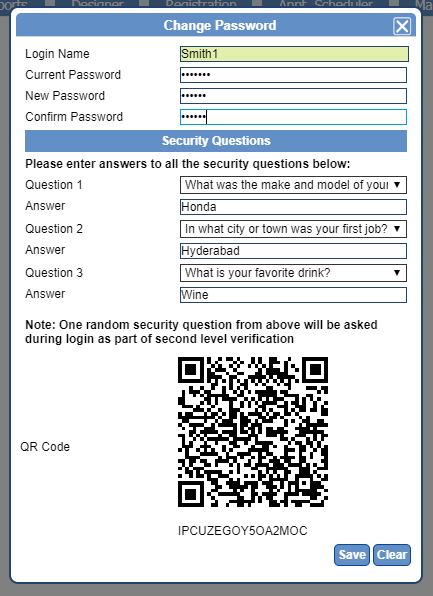
A pop-up
window will be displayed prompting you to Change Password, Setup the Security
Questions & Answers and a QR Code & 16 digit Provider Key would be
displayed to save the same.
In
the Change Password section, you will be prompted to confirm your temporary
password, followed by inserting a new password and reconfirm.
In
the Security Questions section, you will then be asked to fill in all security
questions from a drop-down list. Select the questions that suit you and insert
the answers.
In
the QR Code section, the QR Code and image is displayed, you will have to scan
this QR Code image or input the code, to pair your user account with the
device, and generate an OTP (One Time Password) on (the WinAuth
desktop Authenticator or) Google Authenticator Mobile App, which has already
been installed on your mobile.
On selecting Save the system will navigate you back to
the login screen where you will be required to enter your username and enter
the password, a ‘Login with Two Factor Authentication’ screen is displayed, for
you to enter the One Time Password, that is generated upon scanning the QR Code
image.
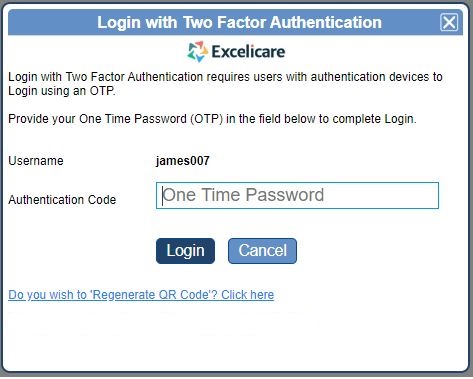
Upon successfully entering the OTP and Login, a,
Excelicare Disclaimer screen on patient privacy is displayed, click on ‘OK’ to
accept the same.
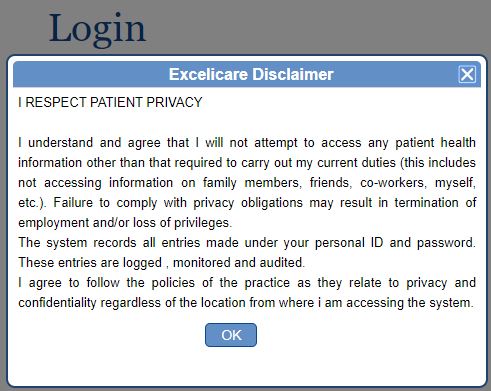
Once you accept the Excelicare Disclaimer and select
‘OK’, a CPT Disclaimer
message will be displayed for first time login only, based on disclaimer
configuration.
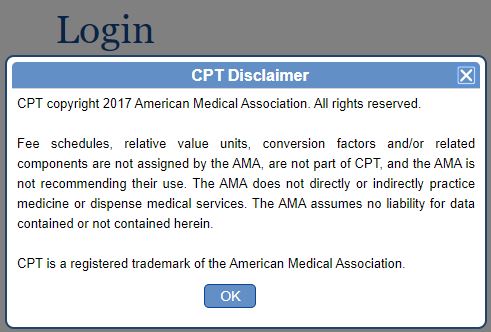
Upon
selecting OK Excelicare application is logged in.
Please Note: that some of the icons, buttons,
settings and displays described in the section may not be configured for your
implementation.
In
previous versions of Excelicare, it was possible to have the application open
with multiple sessions simultaneously. This has now been changed to only
allow you to login once with having only one session active.
However, care should be taken with this as it may cause issues when saving data of another active session and could result in some data not being saved.
You should ensure that you save data as required and pay attention to situations where you could be overwriting data which has not yet been saved, with data from another session.
If you already have an active session open, you will see the following message
when opening another session and logging in:
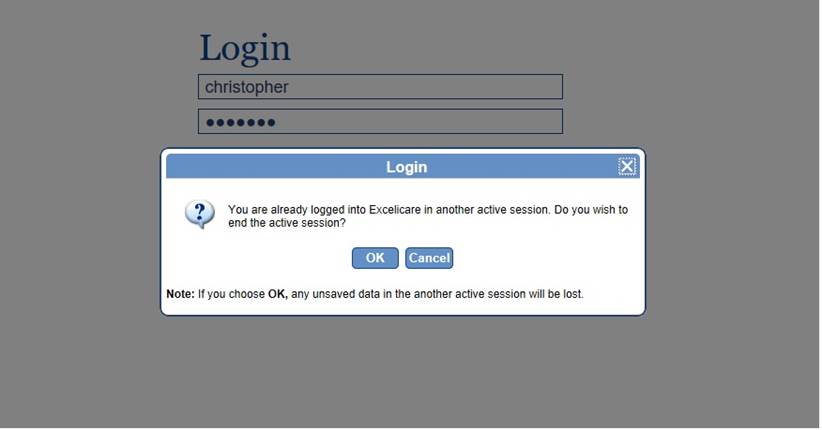
The message window will display the following message:
‘You are already logged into Excelicare
in other active session. Do you wish to end the active session?’
When
you select OK, any unsaved data in the other active session will be lost.
You
should only click on this button to end the previous session, and if the data
has been saved from that session first. For example, if you have started
a clinical note and not saved it and then opened another session and clicked
‘OK’ to end your active session, the clinical note you have entered will not be
saved.
Cancel
Login:
This will cancel the login and refresh the screen waiting on Login details to
be entered.
Please Note: that some of the icons, buttons,
settings and displays described in the section may not be configured for your
implementation.
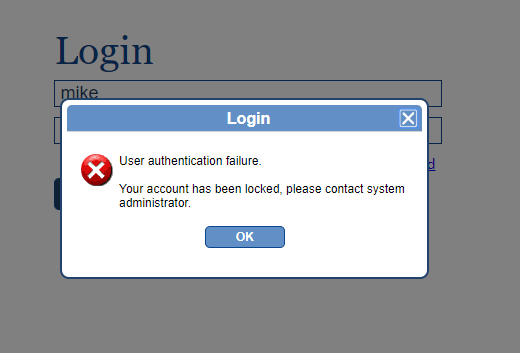
If you have wrongly entered your Excelicare Username and/or password, an error message indicating that you have incorrectly entered the username and/or password would be displayed, indicating the number of remaining attempts.
The following
message would be displayed upon entering incorrect username and/or password,
for the first attempt, indicating of the remaining 2 attempts:
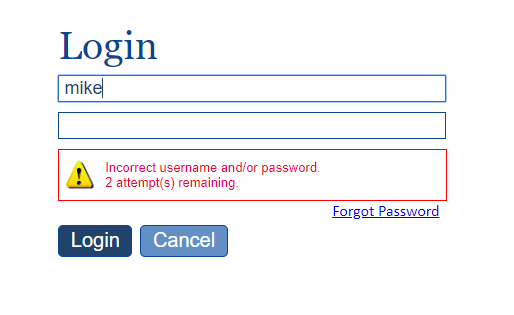
The following message would be displayed upon entering incorrect username and/or password, for the second attempt, indicating of the remaining 1 attempt:
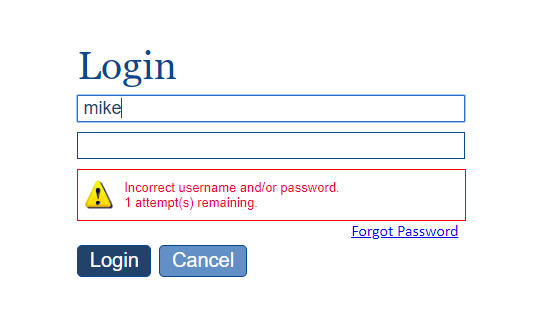
The following message would be displayed upon entering incorrect username and/or password, in the last attempt, indicating of user authentication failure. You may have to contact your system administrator to unlock the account:
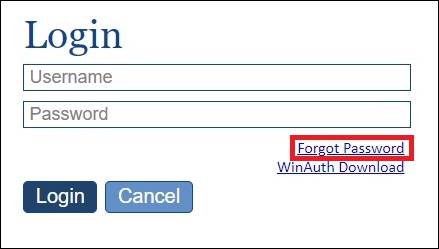
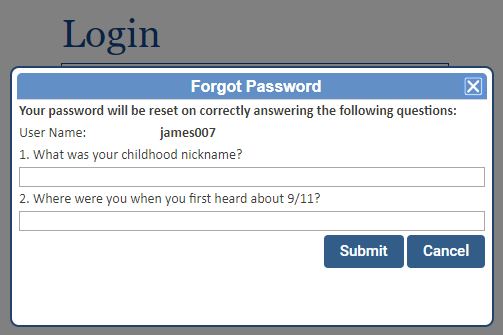
If
you have forgotten your Excelicare password or have been locked out of your
account, then you can reset your own password. On the login screen, enter your
Username and click on the “Forgot Password” and a window will be loaded,
containing security questions for which you must provide the valid answers,
provided during the setup.
The
Password will be reset only when the you provide valid answers for the security
questions displayed.
Registered
User who has recorded security questions
·
On clicking the “Forgot password”
link the following forgot password window will be displayed.
·
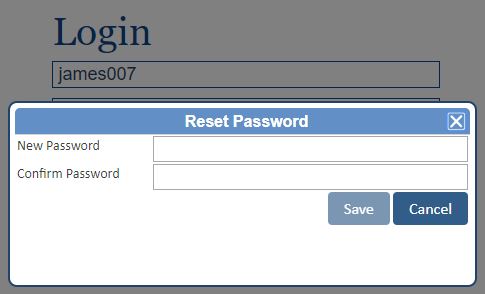
On verification of the answers for
the security questions, the following Reset Password window will be displayed.
The user can reset the password and click on the Save button.
·
On saving the user will be
re-directed to the login page and can login into the application with the new
password.
Registered
User who has NOT recorded security questions
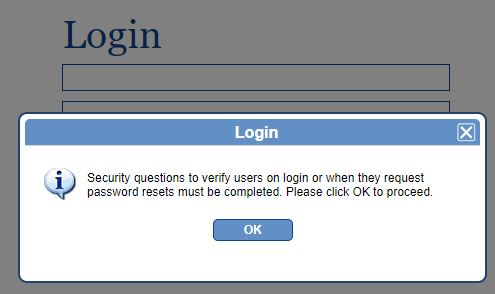
On clicking the “Forgot password” link a validation will be enabled stating
"Security questions to verify users on login or when they request password resets must be completed. Please click OK to proceed." As shown below:
New
User
On clicking the “Forgot password” link a validation will be enabled stating
"Security questions to verify users on login or when they request password resets must be completed. Please click OK to proceed." As shown below:
Forgot
Password window, validating for incorrect
answers
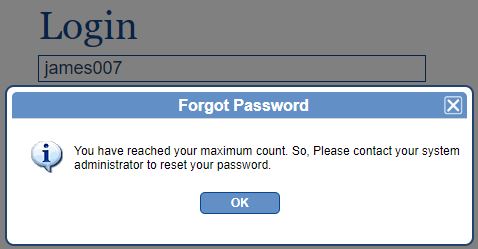
when configuration to limit the number of times is reached.
There
will be a configuration to limit the number of times the user can submit
incorrect response. Once this limit is reached then the user will be given a
message to contact their system administrator as shown below:
Please Note: All images shown are for illustration purposes only and may not be an exact representation of your Excelicare implementation. This section may be configurable with the image portrayed as an example.
Not
all functions shown or described in this manual may be available at your site.
The functions available are dependent upon the installation set-up of your
system and upon your own privileges as set in your user profile and security
group.
If you intend to regenerate the QR Code, you need to login to Excelicare by entering your login credentials.
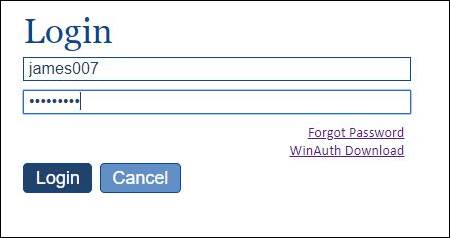
Upon successful validation of the login credentials, the 'Login with Two Factor Authentication' screen is displayed.
To re-generate the QR code, you need to click on 'Regenerate QR Code' in the 'Login with Two Factor Authentication' screen, a new QR Code image and QR Code will be regenerated and an email is sent to your registered email ID.
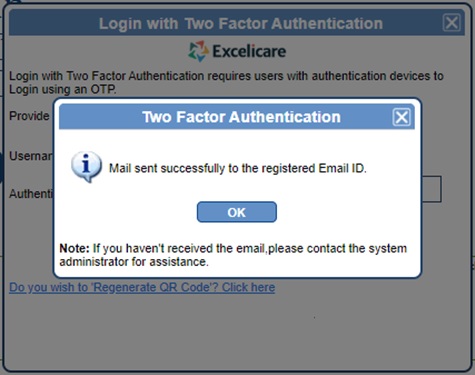
A pop-up message indicates of mail sent successfully to registered Email ID. Upon Clicking OK, the screen navigates back to the Excelicare Login.
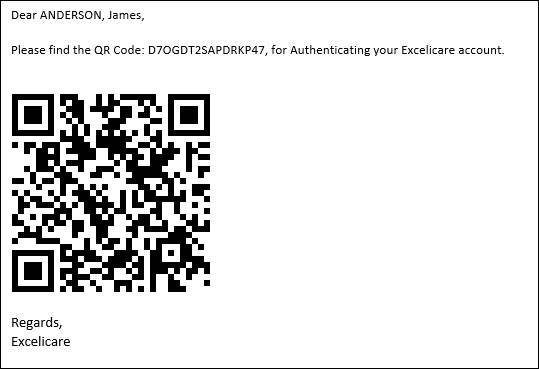
Run Google Authenticator on your mobile and scan the QR Code image or enter the QR Code, received by you in your registered email ID.
For continuing with Login process, enter the login credentials in the Excelicare Login screen, upon authentication ‘Login with Two Factor Authentication’ screen is displayed, Enter the One Time Password (OTP) that is generated on Google Authenticator into the ‘Authentication Code’ text box, and upon clicking on Login, Excelicare application is logged in.
23 Log Off/Exit
Select
‘Log Off’ from the top right hand corner of the window
to log off the current user and display the Excelicare ‘Login’ screen.

Please Note: that some of the icons, buttons, settings and displays
described in the section may not be configured for your implementation.
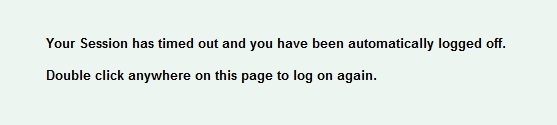
A
default log off time will be set to automatically log off the current inactive
user.
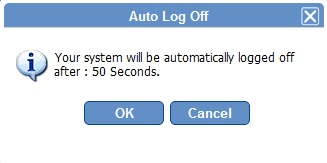
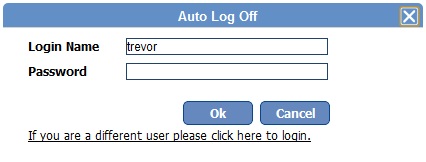
When
the inactive user is reaching the default time, an Auto Log Off message will be
displayed. The user can then re-enter their password and click OK,
following this the user will be returned to the last viewed screen.
Please Note: that some of the icons, buttons, settings and displays
described in the section may not be configured for your implementation.
23.2 Logging back into Excelicare
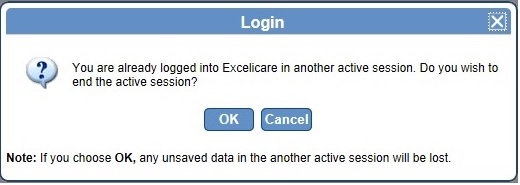
When
the user has automatically been logged off the system, they will require to
re-enter their login details, following this an ‘Active Session’ message will
be displayed as shown below.
If
the user wishes to terminate the previous session then
they should select OK to this message.
Please Note: that some of the icons, buttons, settings and displays
described in the section may not be configured for your implementation.
24 Glossary of Terms
|
Abbreviation |
Description |
|
|
|
|
CAD |
Coronary Artery Disease |
|
CCC |
Clinical Care Classification |
|
CCD |
Continuity of Care Document |
|
CCM |
Chronic Care Management |
|
CDR |
Clinical Data Repository |
|
CHF |
Chronic Heart Failure |
|
CMP |
Care Manager Program |
|
CMS |
Centers for Medicare & Medicaid Services |
|
CMT |
Care Manager Team |
|
CNA |
Comprehensive Needs Assessment |
|
COPD |
Chronic Obstructive Pulmonary Disease |
|
DoD |
Date of Date |
|
GCV |
Global Clinical Variable |
|
ICP |
Integrated Care Plan |
|
IHS |
Initial Health Screening |
|
IVD |
In Vitro Diagnostic |
|
LTC |
Long Term Condition |
|
MIPS |
Merit-based Incentive Payment System |
|
MSI |
Medical Supplementary Insurance |
|
PCP |
Primary Care Physician |
|
PHM |
Population Health Management |
|
PoC |
Plan of Care |
|
PRISM |
Patient Record Information & Search Module |
|
PT |
Physician Team |
|
SNF |
Skilled Nursing Facility |
|
SOAPIE |
Subjective Objective Assessment Plan Intervention &
Evaluation |
Please Note: All images shown are for illustration purposes only and may not be an exact representation of your Excelicare implementation. This section may be configurable with the image portrayed as an example.
Not all functions shown or described in this manual may be available at your
site. The functions available are dependent upon the installation set-up of
your system and upon your own privileges as set in your user profile and
security group.